How it works
Protection that runs on the family computer
Family Lock is an extension for Chrome and Microsoft Edge, with a Windows installer and a Mac profile to keep it in place. It works inside the browser, on any Wi-Fi, with or without a VPN. Nothing about what someone browses is sent to us.
Family Lock Kids
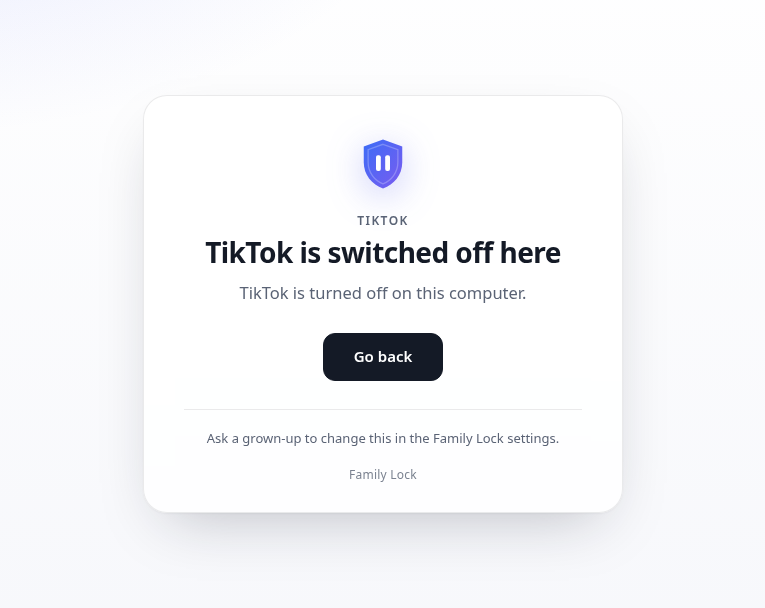
When a child opens TikTok, a YouTube Short, a YouTube game or a Reel, they see a calm “switched off” page instead. Safe search in Google, Bing and DuckDuckGo is included in every plan and locked on; YouTube Restricted Mode is optional, because it can hide school videos. Homework time (on the homework plan) can pause games, social media and chatbots. Bedtime can pause browsing for the hours you choose, and on Windows it can sign out a child's standard account during that window.
Your PIN, and uninstall protection
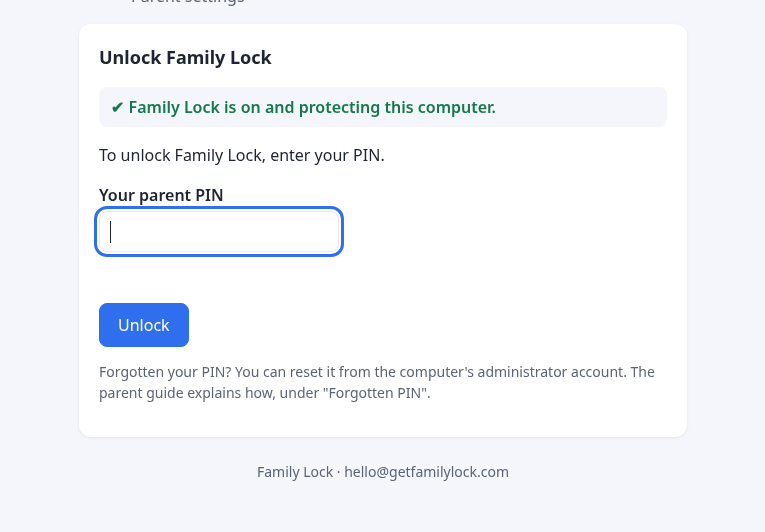
Changing settings or switching Family Lock off needs your parent PIN. On Windows, the installer also asks for that PIN before Family Lock can be uninstalled from Settings, and a helper puts the browser policies back if someone tries to tamper with them.
Unlock codes, with no account
Link a parent's phone once by scanning a QR code. After that, a child can ask for a site or a little more time, and you approve it with a one-time code. The secret stays in the link on your phone; the request never comes to us. More about unlock codes.
Family Lock Seniors (coming soon)
The Seniors edition is for a parent or grandparent's computer. It will force on the scam protections already built into Chrome and Edge, block remote-access tool downloads, warn about common webmail scams, and show a calm “call family first” prompt. You install it, so a scammer on the phone can't talk them into switching it off. Read about Seniors.
What it doesn't do
Family Lock covers Chrome and Edge on Windows and Mac. It doesn't read messages, keystrokes or location, and it doesn't cover phones or tablets yet. It isn't a filter for every possible browser on the computer — here's the honest answer about second browsers.